BLOCK REFERENCE / AI
AI
Enemy and NPC behaviours: chase, flee, patrol, wander.
15 blocks
#AI Distance To Object
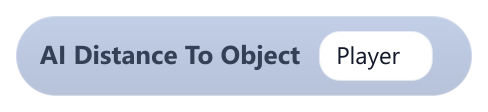
Returns the distance in pixels between this object and another object.
Measured between the two objects' positions (their top-left x, y), so it matches the visual gap only for objects of similar size. Returns 0 if no object has that name.
| Field | What it means |
|---|---|
Objecttext | Name of the other object (not case-sensitive). If several objects share the name, the first one found is used.Default: Player |
Example Plug it into an If with a comparison to start an attack when the player is closer than 150 pixels.
#Chase Object
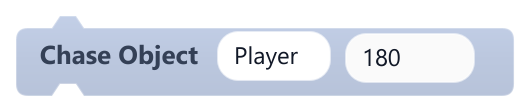
Moves this object straight toward another object at a fixed speed.
Works exactly like Move Toward Object with Use AI Speed off: it changes the position directly (not the velocity), never overshoots the target and does not rotate the object. Moves by speed x frame time, so run it every frame (inside On Update or a Forever loop); a single run moves only one frame's worth. Does nothing if the object is not found.
| Field | What it means |
|---|---|
Objecttext | Name of the other object (not case-sensitive). If several objects share the name, the first one found is used.Default: Player |
Speednumber | Speed in pixels per second. Negative values count as 0. A block plugged into the socket replaces the typed value.Default: 180 |
Speedsocket | Speed in pixels per second. Negative values count as 0. A block plugged into the socket replaces the typed value.Default: number, any |
Example Inside On Update of an enemy with Speed 120 to chase the Player.
#Flee From Object

Moves this object straight away from another object at a fixed speed.
Works like Move Away From Object with Use AI Speed off: it changes the position directly, has no distance limit and does not rotate the object. Moves by speed x frame time, so run it every frame (inside On Update or a Forever loop); a single run moves only one frame's worth. Does nothing if the object is not found or both are at the exact same spot.
| Field | What it means |
|---|---|
Objecttext | Name of the other object (not case-sensitive). If several objects share the name, the first one found is used.Default: Player |
Speednumber | Speed in pixels per second. Negative values count as 0. A block plugged into the socket replaces the typed value.Default: 180 |
Speedsocket | Speed in pixels per second. Negative values count as 0. A block plugged into the socket replaces the typed value.Default: number, any |
Example Inside an If with Object Is Near? so a creature runs away only when the player gets close.
#Follow Object

Moves this object toward another object and turns to face it, stopping once it is within a set distance.
While farther than Stop Distance it rotates to face the target and moves toward it; inside that distance it stands still and keeps its last rotation. Moves by speed x frame time, so run it every frame (inside On Update or a Forever loop); a single run moves only one frame's worth. Distances are measured between the objects' positions (their top-left x, y).
| Field | What it means |
|---|---|
Objecttext | Name of the other object (not case-sensitive). If several objects share the name, the first one found is used.Default: Player |
Speednumber | Speed in pixels per second. Negative values count as 0. Only used when Use AI Speed is false.Default: 180 |
Stop Distancenumber | Distance in pixels at which the object stops approaching. Negative values count as 0.Default: 80 |
Use AI Speeddropdown | true uses the speed stored with Set AI Speed (180 if never set) and ignores Speed; false uses Speed. Defaults to true, so change it to false if you want the Speed value to matter.Options: true · false |
Speedsocket | Speed in pixels per second. Negative values count as 0. Only used when Use AI Speed is false.Default: number, any |
Stop Distancesocket | Distance in pixels at which the object stops approaching. Negative values count as 0.Default: number, any |
Example Inside On Update of a pet with Stop Distance 60 so it trails the player without bumping into it.
#Keep Distance From Object

Keeps this object at a set distance from another object, backing off when too close and approaching when too far.
If closer than Distance minus Tolerance it moves away; if farther than Distance plus Tolerance it moves closer; in between it stays still. It always turns to face the target while moving. Moves by speed x frame time, so run it every frame (inside On Update or a Forever loop); a single run moves only one frame's worth.
| Field | What it means |
|---|---|
Objecttext | Name of the other object (not case-sensitive). If several objects share the name, the first one found is used.Default: Player |
Distancenumber | Distance in pixels to keep from the target. Negative values count as 0.Default: 200 |
Tolerancenumber | How many pixels the distance may drift either way before the object moves. Negative values count as 0.Default: 20 |
Speednumber | Speed in pixels per second. Negative values count as 0. Only used when Use AI Speed is false.Default: 180 |
Use AI Speeddropdown | true uses the speed stored with Set AI Speed (180 if never set) and ignores Speed; false uses Speed. Defaults to true, so change it to false if you want the Speed value to matter.Options: true · false |
Distancesocket | Distance in pixels to keep from the target. Negative values count as 0.Default: number, any |
Tolerancesocket | How many pixels the distance may drift either way before the object moves. Negative values count as 0.Default: number, any |
Speedsocket | Speed in pixels per second. Negative values count as 0. Only used when Use AI Speed is false.Default: number, any |
Example Inside On Update of an archer enemy with Distance 250 so it stays out of melee range.
#Look At Object

Rotates this object so it faces another object.
Sets the rotation instantly (no turning speed). Angles use screen space: 0 degrees points right and 90 points down, because y grows downward. The sprite rotates too. Does nothing if the object is not found.
| Field | What it means |
|---|---|
Objecttext | Name of the other object (not case-sensitive). If several objects share the name, the first one found is used.Default: Player |
Example Inside On Update of a turret so it always aims at the Player.
#Move Away From Object

Moves this object straight away from another object.
Changes the position directly (not the velocity), with no distance limit, and does not rotate the object. Moves by speed x frame time, so run it every frame (inside On Update or a Forever loop); a single run moves only one frame's worth. Does nothing if the object is not found.
| Field | What it means |
|---|---|
Objecttext | Name of the other object (not case-sensitive). If several objects share the name, the first one found is used.Default: Player |
Speednumber | Speed in pixels per second. Negative values count as 0. Only used when Use AI Speed is false.Default: 180 |
Use AI Speeddropdown | true uses the speed stored with Set AI Speed (180 if never set) and ignores Speed; false uses Speed. Defaults to true, so change it to false if you want the Speed value to matter.Options: true · false |
Speedsocket | Speed in pixels per second. Negative values count as 0. Only used when Use AI Speed is false.Default: number, any |
#Move To Target

Moves this object straight toward a target object at a fixed speed.
Same behaviour as Chase Object: it changes the position directly, stops exactly on the target instead of overshooting and does not rotate the object. Moves by speed x frame time, so run it every frame (inside On Update or a Forever loop); a single run moves only one frame's worth.
| Field | What it means |
|---|---|
Targettext | Name of the target object (not case-sensitive), for example an empty marker placed in the scene.Default: Player |
Speednumber | Speed in pixels per second. Negative values count as 0. A block plugged into the socket replaces the typed value.Default: 180 |
Speedsocket | Speed in pixels per second. Negative values count as 0. A block plugged into the socket replaces the typed value.Default: number, any |
Example Place an object called Exit and use this block in On Update to walk an NPC there.
#Move Toward Object

Moves this object straight toward another object.
Changes the position directly (not the velocity), stops exactly on the target instead of overshooting, and does not rotate the object (use Look At Object for that). Moves by speed x frame time, so run it every frame (inside On Update or a Forever loop); a single run moves only one frame's worth.
| Field | What it means |
|---|---|
Objecttext | Name of the other object (not case-sensitive). If several objects share the name, the first one found is used.Default: Player |
Speednumber | Speed in pixels per second. Negative values count as 0. Only used when Use AI Speed is false.Default: 180 |
Use AI Speeddropdown | true uses the speed stored with Set AI Speed (180 if never set) and ignores Speed; false uses Speed. Defaults to true, so change it to false if you want the Speed value to matter.Options: true · false |
Speedsocket | Speed in pixels per second. Negative values count as 0. Only used when Use AI Speed is false.Default: number, any |
#Object Is Far?
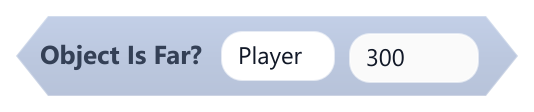
True when another object is at least the given distance away from this object.
The check is distance >= Distance. Distances are measured between the objects' positions (their top-left x, y). Returns false if no object has that name, so it is not simply the opposite of Object Is Near?.
| Field | What it means |
|---|---|
Objecttext | Name of the other object (not case-sensitive). If several objects share the name, the first one found is used.Default: Player |
Distancenumber | Minimum distance in pixels.Default: 300 |
Distancesocket | Minimum distance in pixels.Default: number, any |
Example Use it in an If to stop chasing when the player has escaped.
#Object Is Near?
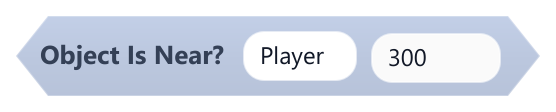
True when another object is within the given distance of this object.
The check is distance <= Distance. Distances are measured between the objects' positions (their top-left x, y). Returns false if no object has that name.
| Field | What it means |
|---|---|
Objecttext | Name of the other object (not case-sensitive). If several objects share the name, the first one found is used.Default: Player |
Distancenumber | Maximum distance in pixels.Default: 300 |
Distancesocket | Maximum distance in pixels.Default: number, any |
Example Combine it with Chase Object inside an If so an enemy only chases when the player is nearby.
#Patrol Between Points

Moves this object back and forth between two objects used as waypoints, facing where it goes.
It heads to Point A first, switches to the other point when within Arrival Distance, and repeats. Each block remembers its own next waypoint. Moves by speed x frame time, so run it every frame (inside On Update or a Forever loop); a single run moves only one frame's worth. Does nothing unless both points exist.
| Field | What it means |
|---|---|
Point Atext | Name of the first waypoint object, for example an invisible marker.Default: PointA |
Point Btext | Name of the second waypoint object.Default: PointB |
Speednumber | Speed in pixels per second. Negative values count as 0. Only used when Use AI Speed is false.Default: 180 |
Arrival Distancenumber | How close in pixels the object must get to a point before turning back. Minimum 1.Default: 12 |
Use AI Speeddropdown | true uses the speed stored with Set AI Speed (180 if never set) and ignores Speed; false uses Speed. Defaults to true, so change it to false if you want the Speed value to matter.Options: true · false |
Speedsocket | Speed in pixels per second. Negative values count as 0. Only used when Use AI Speed is false.Default: number, any |
Arrival Distancesocket | How close in pixels the object must get to a point before turning back. Minimum 1.Default: number, any |
Example Place two empty objects at the ends of a platform and patrol a guard between them inside On Update.
#Set AI Speed
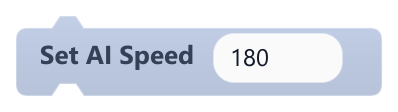
Stores the speed this object's AI blocks use when their Use AI Speed option is true.
Does not move the object by itself. Negative values become 0. Until this block runs, the stored speed is 180 pixels per second (120 for Wander Randomly).
| Field | What it means |
|---|---|
Speednumber | Speed in pixels per second. A block plugged into the socket replaces the typed value.Default: 180 |
Speedsocket | Speed in pixels per second. A block plugged into the socket replaces the typed value.Default: number, any |
Example Raise it when an enemy gets angry so all its AI movement blocks speed up at once.
#Stop AI Movement
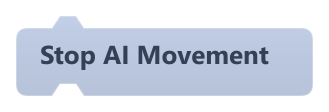
Sets this object's velocity to zero.
It only clears the physics velocity. The other AI blocks move the position directly, so they keep moving the object as long as they run; to stop them, stop running those blocks (for example with an If).
Example Use it when an enemy with a Rigidbody is stunned, together with a condition that skips its AI blocks.
#Wander Randomly

Moves this object in a random direction that changes every few seconds, facing the way it moves.
A new random direction is picked every Change Every seconds; the timer is shared by the whole object. It does not steer around walls or other objects. Moves by speed x frame time, so run it every frame (inside On Update or a Forever loop); a single run moves only one frame's worth.
| Field | What it means |
|---|---|
Speednumber | Speed in pixels per second. Negative values count as 0. Only used when Use AI Speed is false.Default: 120 |
Change Everynumber | Seconds between direction changes. Minimum 0.05.Default: 1 |
Use AI Speeddropdown | true uses the speed stored with Set AI Speed (120 if never set) and ignores Speed; false (the default) uses Speed.Options: true · false |
Speedsocket | Speed in pixels per second. Negative values count as 0. Only used when Use AI Speed is false.Default: number, any |
Change Everysocket | Seconds between direction changes. Minimum 0.05.Default: number, any |
Example Inside On Update of ambient critters, combined with Keep inside area so they stay on screen.