PYBLOCKS / BLOCK REFERENCE
All 261 blocks
Every block in the editor's Library, grouped by category like in the palette. Block names stay in English, exactly as you see them in PyBlocks.
Five shapes

Starts a script when something happens.
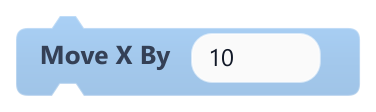
Does something. Snaps above and below.
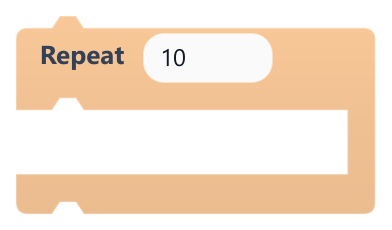
Wraps other blocks: conditions and loops.
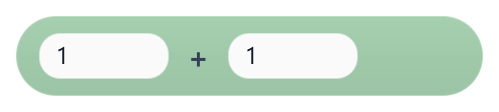
Returns a value you plug into a field.
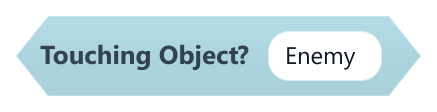
Returns true or false, for conditions.
Events16
The hats that start every script: on start, every frame, on a key, on a collision.
- On Collision EnterRuns the blocks below in the frame this object's collider starts touching another solid collider.
- On Collision ExitRuns the blocks below in the frame this object's collider stops touching another solid collider.
- On Fixed UpdateRuns the blocks below at a fixed rate of 60 times per second, whatever the frame rate.
- On Key PressedRuns the blocks below once, in the frame the chosen key is pressed down.
- On Key ReleasedRuns the blocks below once, in the frame the chosen key is let go.
- On Mouse ClickRuns the blocks below in the frame the chosen mouse button is pressed anywhere in the game view.
- On Mouse ReleaseRuns the blocks below in the frame the chosen mouse button is released anywhere in the game view.
- On Object ClickedRuns the blocks below when the left mouse button is pressed over this object.
- On Object SpawnedRuns the blocks below on a newly created object, in the frame it appears.
- On Timer FinishedRuns the blocks below when a timer finishes. Reserved: currently has no effect at runtime.
- On Trigger EnterRuns the blocks below in the frame this object's collider starts overlapping a trigger.
- On Trigger ExitRuns the blocks below in the frame this object's collider stops overlapping a trigger.
- On UpdateRuns the blocks below once every frame while the game is playing.
- When Game StartsRuns the blocks below once when the scene starts playing.
- When Scene StartsRuns the blocks below once when this scene starts playing, including after a scene load or Restart game.
- When This Button ClickedRuns the blocks below when this UI button is clicked with the left mouse button.
Motion31
Position, rotation, size and movement of objects.
- Face directionTurns this object to face up, down, left or right and plays the matching Idle animation.
- Face toward objectTurns this object to face another object (up, down, left or right) and plays that Idle animation.
- Go to random free cellMoves this object to a random grid cell that is not covered by any collider.
- Go to x y {…}Moves this object to an x, y position given as numbers or {templates}.
- Grow trailAdds copies of an object to the end of this object's grid trail, like a snake that grows.
- Keep inside areaKeeps this object's position inside a rectangle.
- Lerp To PositionMoves this object part of the way toward a target position, easing in as it gets closer.
- Look At MouseRotates this object so its facing direction points at the mouse pointer.
- MoveMoves this object by an amount in the mode you pick: forward, backward, left, right, along x or y, or at an angle.
- Move BackwardMoves this object backward, opposite to the direction it faces, by a number of pixels.
- Move By AngleMoves this object a number of pixels in a given direction, without changing its rotation.
- Move ForwardMoves this object forward, in the direction it faces, by a number of pixels.
- Move LeftMoves this object left by a number of pixels.
- Move on gridMoves this object one grid cell in its steered direction at a steady interval, snake-style.
- Move RightMoves this object right by a number of pixels.
- Move X ByChanges this object's x position by a number of pixels.
- Move Y ByChanges this object's y position by a number of pixels.
- Orbit Around ObjectPlaces this object on a circle around another object, driven by the game clock.
- Patrol back and forthMoves this object back and forth from its starting position forever, for enemies and moving platforms.
- Point To AngleSets this object's rotation to an angle in degrees.
- Point To ObjectRotates this object so it faces another object.
- Rotate ByTurns this object by a number of degrees.
- Set HeightSets this object's height in pixels.
- Set PositionMoves this object to an exact x, y position.
- Set RotationSets this object's rotation to an angle in degrees.
- Set ScaleMultiplies this object's current width and height by the given factors.
- Set WidthSets this object's width in pixels.
- Set XSets this object's x position.
- Set YSets this object's y position.
- Steer on grid (arrows / WASD)Queues a turn when an arrow key or W, A, S, D is pressed, for objects moved by Move on grid.
- Walk on grid (arrows / WASD)Walks this object one grid cell at a time with the arrow keys or W, A, S, D, blocked by solid colliders.
Control15
Conditions, loops, waits and clones.
- BreakLeaves the nearest loop right away and continues with the block after it.
- Clone ObjectCreates a copy of this object named <name> Clone, 20 pixels to the right and 20 pixels down.
- ContinueSkips the rest of the current loop pass and goes on to the next one.
- Destroy ObjectRemoves this object from the game and stops the current script.
- ForeverRuns the blocks inside once every frame, for as long as the game plays.
- IfRuns the blocks inside only when the condition is true.
- If ElseRuns the first group of blocks when the condition is true, and the second group when it is false.
- RepeatRuns the blocks inside a set number of times, all within the same frame.
- Repeat UntilRuns the blocks inside again and again until the condition becomes true.
- Restart gameRestarts the game instantly from the scene's starting state.
- ReturnEnds the current script, exactly like Stop Script.
- Stop AllStops the whole game: every script, the physics and all sounds halt.
- Stop ScriptEnds the current script; other scripts keep running.
- WaitPauses this script for a number of seconds, then continues with the next block.
- Wait for keyPauses this script until one of the listed keys is pressed.
Sensing16
Questions about the world: touching another object? where is the mouse? how much time passed?
- Delta TimeReturns the time in seconds since the previous frame.
- Dialogue or menu is openTrue while a dialogue box or choice menu is waiting for the player.
- Distance To ObjectReturns the distance in pixels from this object to another object.
- Finished a grid stepTrue on the frame this object finishes a step of Walk on grid (arrows / WASD).
- Is faced byTrue when the named grid-walking object stands next to this one and faces it.
- Key just pressedTrue only on the frame one of the listed keys goes down.
- Key Pressed?True while a key is held down.
- Lands on meTrue when the named object touches this one while landing on its top, as in a stomp.
- Mouse Down?True while a mouse button is held down.
- Mouse XReturns the mouse pointer's horizontal position in world pixels.
- Mouse YReturns the mouse pointer's vertical position in world pixels.
- Object RotationReturns this object's rotation in degrees.
- Object XReturns this object's X position in pixels.
- Object YReturns this object's Y position in pixels.
- TimerReturns the seconds elapsed since the scene started playing.
- Touching Object?True when this object is touching any object with the given name.
Input4
Axes and actions: the player's horizontal and vertical direction and action buttons.
- Get Action DownTrue when a key of the named action was pressed in this frame (only for that one frame).
- Get Action PressedTrue when any key of the named action is being held down.
- Get Axis HorizontalReturns -1 while Left or A is held, 1 while Right or D is held, and 0 otherwise.
- Get Axis VerticalReturns -1 while Up or W is held, 1 while Down or S is held, and 0 otherwise.
Operators20
Math, comparisons, logic, randomness and text.
- AbsReturns the absolute value of a number (removes its minus sign).
- AddReturns the sum of two numbers.
- AndTrue when both conditions are true.
- ClampReturns a number limited to stay between a minimum and a maximum.
- Compare valuesTrue when two values or {templates} compare as chosen (=, !=, <, >, <=, >=).
- DivideReturns the first number divided by the second.
- EqualTrue when both values are equal.
- GreaterTrue when the first number is greater than the second.
- Join TextReturns two values joined together as a single piece of text.
- LessTrue when the first number is less than the second.
- MaxReturns the larger of two numbers.
- MinReturns the smaller of two numbers.
- ModuloReturns the remainder of dividing the first number by the second.
- MultiplyReturns the product of two numbers.
- NotTrue when the condition is false, and false when it is true.
- OrTrue when at least one of the two conditions is true.
- Random chance %True with the given probability, from 0 to 100 percent.
- Random RangeReturns a random decimal number between a minimum and a maximum.
- RoundReturns a number rounded to the nearest whole number.
- SubtractReturns the first number minus the second.
Variables18
Store and change values: score, lives, states, globals.
- CalculateCalculates a op b and stores the result in a variable.
- Change global variableAdds an amount to a global variable.
- Change VariableAdds an amount to one of this object's variables.
- Change variable of objectAdds an amount to a variable on another object.
- Clear all global variablesDeletes every global variable.
- Compare variableTrue when one of this object's variables compares to a value as chosen.
- Count down variableSubtracts the frame time in seconds from a variable, stopping at 0.
- Get VariableReturns the current value of one of this object's variables.
- Global variableReturns the value of a global variable, or 0 if it does not exist yet.
- Hide VariableHides a variable previously shown with Show Variable.
- Look up in tableSets a variable to the value stored for a key in a key=value table.
- Pick random itemSets a variable to one random item from a list separated by |.
- Remember best scoreStores the highest value a variable has reached in another variable, even across restarts.
- Set global if missingSets a global variable only if it does not exist yet.
- Set global variableSets a game-wide global variable that is kept when another scene loads.
- Set VariableSets one of this object's variables to a value.
- Set variable of objectSets a variable on another object, creating it if needed.
- Show VariableShows a variable and its live value in the corner of the game view.
Lists7
Lists of values for inventories, queues and more.
- Add To ListAdds a value to the end of one of this object's lists.
- Clear ListRemoves every item from one of this object's lists.
- Get List ItemReturns the item at a position in one of this object's lists.
- List ContainsTrue when one of this object's lists contains a value.
- List LengthReturns how many items one of this object's lists has.
- Remove From ListRemoves the item at a position from one of this object's lists.
- Set List ItemReplaces the item at a position in one of this object's lists.
Objects8
Create, find, enable and destroy scene objects.
- Create ObjectCreates a copy of this object with a new name at a position, at the end of the frame.
- Destroy ObjectRemoves the object with the given name from the game at the end of the frame.
- Find Object By NameReturns a reference to the first object with the given name.
- Get Other Collision ObjectReturns the object this one touched in the current frame, if any.
- Get SelfReturns a reference to the object running this script.
- Remove ParentDetaches a named object from its parent.
- Set Object ActiveTurns a named object on or off.
- Set ParentMakes one object the child of another, by name.
Physics8
Velocity, forces and gravity of the rigidbody.
- Add ForceAdds to this object's velocity, pushing it in a direction.
- Is Grounded?True when this object is standing on top of a solid collider.
- Launch upwardSets an object's upward speed instantly, for springs, stomp bounces and knock-backs.
- Platformer controlsGives this object platformer controls: run with the arrows or A and D, jump with Space, Up, W or Z.
- Set Collider EnabledTurns this object's collider on or off.
- Set Gravity ScaleSets how strongly gravity pulls this object.
- Set KinematicMakes this object kinematic, or lets physics move it again.
- Set VelocitySets this object's velocity in pixels per second.
Camera9
Follow the player, zoom, bounds and camera shake.
- Fade screenFades a full-screen colour in or out over everything, including UI.
- Follow ObjectMakes the camera follow an object, centring the view on it every frame.
- Follow object smoothlyEases this object toward another object's centre; on a Camera it makes a smooth follow camera.
- Move Camera ByShifts the camera by an x, y offset. Reserved: currently has no lasting effect at runtime.
- Parallax with cameraLinks this object to the camera so it scrolls at a fraction of the camera's movement, for parallax backgrounds.
- Pin to screenKeeps this object at a fixed spot on the screen, for HUD elements.
- Set Camera PositionMoves the camera to a world position. Reserved: currently has no lasting effect at runtime.
- Set ZoomSets the camera zoom.
- Shake CameraShakes the camera for a short time.
Looks11
Visibility, opacity, color, sprite and draw order.
- BlinkMakes the object flash on and off for a number of seconds.
- Change SpriteShows a named slice of the object's current image, as defined in the Tile Editor.
- Flip XMirrors the object horizontally, toggling each time it runs.
- Flip YMirrors the object vertically, toggling each time it runs.
- HideHides the object and its child objects.
- Set ColorSets the object's color.
- Set Layer OrderSets the object's drawing order: higher numbers are drawn on top.
- Set OpacitySets how opaque the object is, from 0 (invisible) to 1 (fully opaque).
- Set sprite imageChanges the image this object shows.
- ShowShows the object again after Hide.
- Stop AnimationStops this object's animation and rewinds it to the start.
Animation17
Play Animator clips and tween properties.
- Animate property toSmoothly changes one of the object's properties to a target value over a number of seconds.
- Animation Finished?True when the chosen animation has played to its end on this object and no animation was started since.
- Animation TimeReturns how many seconds into its current animation this object is.
- Current Animation NameReturns the name of the animation this object is playing or last played, or empty text if there is none.
- Is Animation Playing?True when this object has an animation running that is not paused.
- On Animation FinishedRuns the blocks below once each time the chosen animation reaches its end on this object.
- Pause AnimationPauses this object's current animation on its current frame.
- Play AnimationStarts playing one of this object's animations from the beginning.
- Play Animation And WaitPlays an animation once from the start and waits until it ends before running the next block.
- Play animation named {…}Plays one of this object's animations whose name is built from text and {variable} templates.
- Restart AnimationPlays an animation from its first frame, even if it is already playing.
- Resume AnimationContinues this object's paused animation.
- Seek animationJumps this object's current animation to a time in seconds.
- Set animation loopTurns looping on or off for this object's animations.
- Set Animation SpeedSets how fast this object's animations play, where 1 is normal speed.
- Stop AnimationStops this object's animation and rewinds it to the start.
- Stop property animationsStops every Animate property to change running on this object.
VFX7
Particles, emitters, shockwaves and screen flashes.
- Clear all effectsRemoves all particles, particle emitters and the screen flash in the scene.
- Custom particle burstEmits a one-time burst of particles from the object's center with fully custom settings.
- Particle burstEmits a one-time burst of particles from the object's center using a preset look.
- Screen flashFlashes the whole screen with a color that fades out.
- Shockwave ringDraws a ring that expands from the object's center and fades out.
- Start particle emitterStarts emitting particles continuously from the object's center using a preset look.
- Stop particle emitterStops this object's particle emitter with the given name.
Effects2
Ready-made effects: bursts and trails.
Lighting8
Ambient light, point lights and post effects (vignette, color grade, scanlines).
- Add light to this objectAttaches a point light to this object that follows it around.
- Clear post effectsRemoves the vignette, color grade and retro scanlines.
- Remove light of this objectRemoves this object's light.
- Set ambient lightDarkens the whole world with a color so that object lights can shine through it.
- Set color grade (post effect)Tints the world by multiplying it with a color, as a post effect.
- Set light of this objectChanges the radius and intensity of this object's light, optionally fading over time.
- Set retro scanlines (post effect)Draws subtle CRT-style scanlines over the world, as a post effect.
- Set vignette (post effect)Darkens the edges of the screen, as a post effect.
Audio9
Sounds, music and volume.
- Fade VolumeSets the master volume to a target level. The fade is not implemented yet, so the change is instant.
- Is Music Playing?True when a music track started with Play Music is playing.
- Play MusicStarts a looping music track, replacing any music already playing.
- Play SoundPlays a sound effect once.
- Set AudioClip VolumeSets a stored volume for one audio file and applies it right away if that file is playing.
- Set VolumeSets the master volume that scales all sounds and music.
- Stop All SoundsStops every sound effect that is playing; music keeps playing.
- Stop MusicStops the current music track.
- Stop SoundStops every playing copy of the chosen sound effect.
UI17
Text, buttons, images, bars, dialogues, menus and fonts.
- Choice menuShows a keyboard menu over your UI texts, pauses the script until the player picks one and stores its number.
- Disable ButtonDisables a UI Button so it ignores hover and clicks and shows its disabled look.
- Enable ButtonEnables a UI Button again so it reacts to hover and clicks.
- Hide UIHides a UI object (text, image or button).
- Say in dialogue boxTypes text letter by letter into a UI text, then pauses the script until the player presses a key.
- Set barResizes a bar to value / max of its full width, with an optional image for each fill level.
- Set Button ImageSets the image a UI Button shows in one of its states.
- Set Button TextChanges the label shown on a UI Button.
- Set UI ColorChanges a colour of a UI Text or UI Button.
- Set UI FontChanges the font, and optionally the size, of a UI Text or UI Button.
- Set UI Font SizeChanges the font size of a UI Text or UI Button.
- Set UI ImageChanges the image of a UI Image, or the normal image of a UI Button.
- Set UI OpacitySets how opaque a UI object is, from 0 (invisible) to 1 (solid).
- Set UI TextChanges the text of a UI Text or the label of a UI Button.
- Set UI text from templateSets a UI text from a template, replacing each {reference} with the current value of a variable.
- Set UI Value (Unsupported)Reserved: currently has no effect at runtime.
- Show UIShows a UI object (text, image or button) that was hidden.
Scene8
Switch scenes (with a fade), reload them and checkpoints.
- Fade to sceneFades the screen to a color, then loads a scene that fades back in.
- Load CheckpointRestores the game state saved by Save Checkpoint.
- Load Next SceneLoads the next scene in the project's scene order, wrapping around to the first after the last.
- Load Previous SceneLoads the previous scene in the project's scene order, wrapping around to the last before the first.
- Load SceneStops the current scene and loads the chosen one.
- Reload SceneRestarts the current scene from its initial state.
- Save CheckpointSaves a checkpoint of the current scene's state to disk, replacing the previous one.
- Set Spawn PointStores a spawn point position. Reserved: nothing in the engine uses it yet.
Progress8
Save and load games and checkpoints.
- Checkpoint Exists?True when a checkpoint has been saved and not cleared.
- Clear CheckpointDeletes the saved checkpoint file.
- Delete SaveDeletes the save stored in a slot.
- Load CheckpointRestores the game state saved by Save Checkpoint.
- Load GameRestores the game state saved in a slot, without changing scene.
- Save CheckpointSaves a checkpoint of the current scene's state to disk, replacing the previous one.
- Save Exists?True when a save file exists in the given slot.
- Save GameSaves the current scene's state to a named slot on disk, replacing what was there.
AI15
Enemy and NPC behaviours: chase, flee, patrol, wander.
- AI Distance To ObjectReturns the distance in pixels between this object and another object.
- Chase ObjectMoves this object straight toward another object at a fixed speed.
- Flee From ObjectMoves this object straight away from another object at a fixed speed.
- Follow ObjectMoves this object toward another object and turns to face it, stopping once it is within a set distance.
- Keep Distance From ObjectKeeps this object at a set distance from another object, backing off when too close and approaching when too far.
- Look At ObjectRotates this object so it faces another object.
- Move Away From ObjectMoves this object straight away from another object.
- Move To TargetMoves this object straight toward a target object at a fixed speed.
- Move Toward ObjectMoves this object straight toward another object.
- Object Is Far?True when another object is at least the given distance away from this object.
- Object Is Near?True when another object is within the given distance of this object.
- Patrol Between PointsMoves this object back and forth between two objects used as waypoints, facing where it goes.
- Set AI SpeedStores the speed this object's AI blocks use when their Use AI Speed option is true.
- Stop AI MovementSets this object's velocity to zero.
- Wander RandomlyMoves this object in a random direction that changes every few seconds, facing the way it moves.
Essentials1
Shortcuts to get started fast.
Debug4
Console messages and debugging tools.
Custom2
Custom blocks (reserved for a future version).