PYBLOCKS / DOCS
Install and make your first game
Install PyBlocks on Windows, open an example, press Play and save your changes. No Python or other tools are needed.
#Install PyBlocks
PyBlocks runs on 64-bit Windows 10 or later. The installer is a single file named PyBlocks-Setup-0.9.0-beta.1.exe, and everything the editor needs (including its own Python runtime) is inside it.
- Double-click
PyBlocks-Setup-0.9.0-beta.1.exe. - If Windows SmartScreen shows Windows protected your PC, click More info and then Run anyway. The beta is not code-signed yet, so Windows does not recognise the publisher.
- The installer follows your Windows language (English or Spanish). By default it installs just for you, without administrator rights; you can choose to install for all users instead.
- Keep or change the install folder. The page also reminds you that your projects are kept if you uninstall.
- Optionally tick Create a desktop shortcut.
- Leave Launch PyBlocks ticked on the last page and click Finish.
To uninstall, use Windows Settings → Apps or the Uninstall PyBlocks entry in the Start menu. Your projects and settings are not deleted.
#The Home workspace
PyBlocks opens on Home. On the very first launch a 5-step Quick tour highlights the workspaces, the examples, Play, Blocks and the main shortcuts. Press Esc or Skip tour to close it; replay it any time with Help → Quick tour or the Quick tour button on Home.
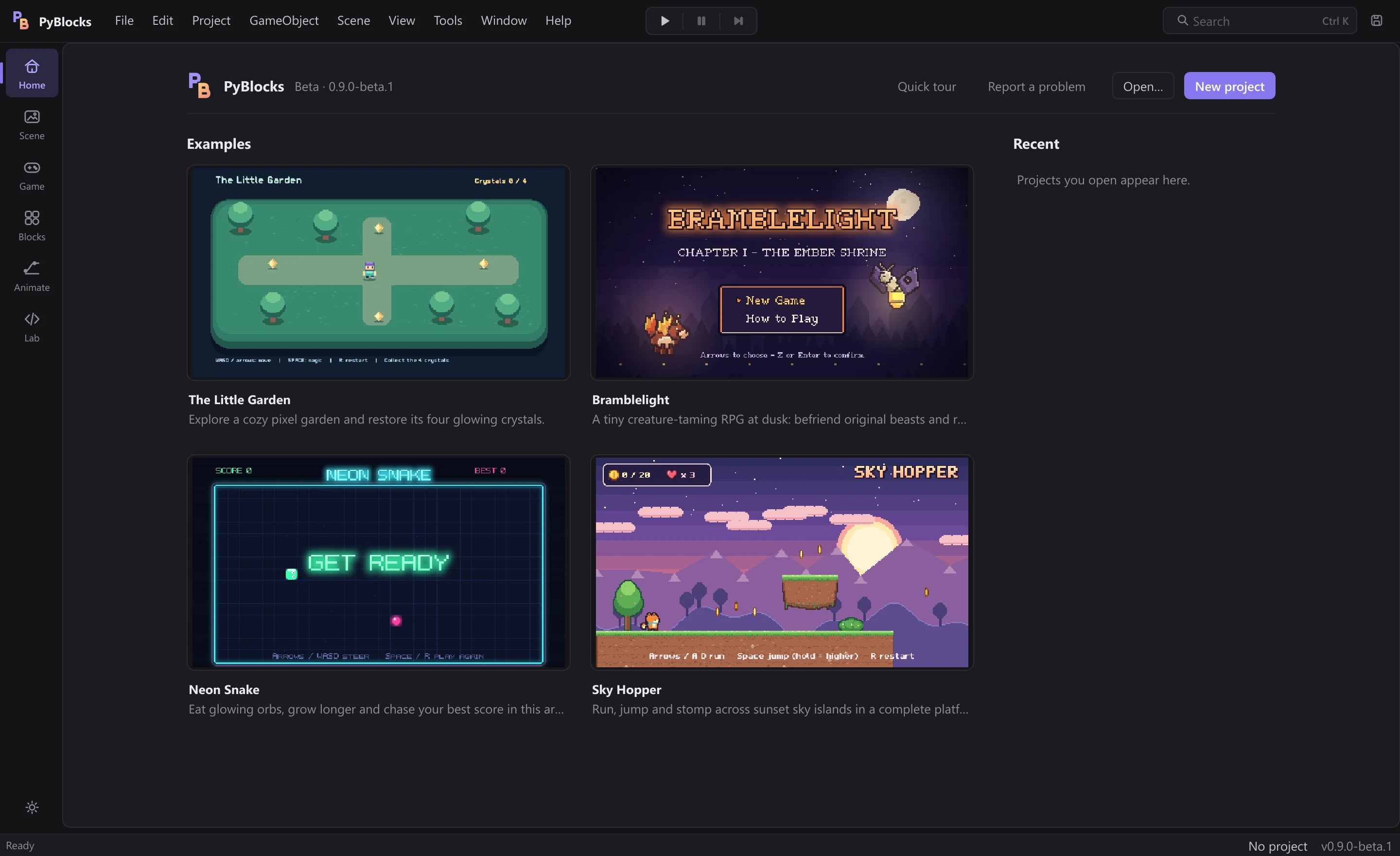
Examples: the four bundled games, each with a screenshot and a one-line description.Recent: the last projects you opened. Click one to reopen it.New projectandOpen…: create a project or open an existing project folder.Report a problem: saves a zip with diagnostics you can send us (see Troubleshooting).
The version you are running is shown next to the logo, at the right end of the status bar and in Help → About PyBlocks (F1).
#Open an example
The fastest way to learn is to open a finished game and look inside.
- On
Home, click an example card, for example The Little Garden. - PyBlocks copies it to
Documents\PyBlocks\<example name>and opens the copy in theSceneworkspace. If that folder already exists, the copy gets a number, such asLittleGarden 2. - The shipped original is never modified, so you can experiment freely.
File → Open Example... does the same but lets you pick the example from a list and choose the destination folder yourself. The examples guide describes what each game teaches.
#Create a new project
- Click
New projecton Home, or useFile → New Project(Ctrl+Shift+N). - Type a project name. It becomes the folder name, so avoid characters such as
\ / : * ? " < > |. - Choose the parent folder. PyBlocks creates the project folder inside it.
Every new project starts from The Little Garden, a small animated starter game, already saved and ready to play. A project is a plain folder:
MyProject/
  .pbproject.json      project settings (name, start scene, window size...)
  scenes/              scenes (*.pbscene.json)
  assets/              sprites, audio, fonts, animation clips
  plugins/             PyBlocks Lab Python modules (*.py)
To reopen a project later, use Recent on Home, Open…, or File → Open Project Folder (Ctrl+Shift+O) and select the project folder.
#Press Play

Press Ctrl+P or the Play button in the middle of the header. The game starts in the Game workspace. In The Little Garden, move with WASD or the arrow keys, press Space for a magic burst and collect the four crystals.
| CtrlP | Play / Stop |
|---|---|
| CtrlShiftP | Pause / Resume |
| CtrlAltP | Step one frame |
| Ctrl. | Stop |
Changes the game makes while it runs are not kept: when you stop, the editor shows the scene exactly as it was before you pressed Play. If a script has an error, Play is blocked and the Problems panel explains why (see Blocks). The Play modes and where the game view can live are described in The editor interface.
#Save your work
| CtrlS | Save Scene |
|---|---|
| CtrlShiftS | Save Scene As... |
| CtrlAltS | Save Project |
- Save Scene (
File → Save Scene, also in theScenemenu, or the disk icon in the header) writes the open scene, including every object's blocks, to its.pbscene.jsonfile. - Save Project saves the scene and also writes
.pbproject.jsonwith the project settings. - Animation clips save themselves a moment after each change.
The status bar says Saved, Modified or No project, and a dot appears next to the scene name in the workspace caption when there are unsaved changes. PyBlocks asks before closing or switching scenes with unsaved changes.