PYBLOCKS / DOCS
UI, text and fonts
Build titles, HUDs, menus and buttons with UI objects, and give your game its own typeface by importing .ttf or .otf fonts into the project.
#UI objects
PyBlocks has three kinds of UI object. Create them from GameObject → UI: Text, Image and Button. New objects get names like ui text 1; rename them in the Inspector, because UI blocks find their target by name.
- UI Text:
Text,Font,Font SizeandColor, plus aCenter in Screenbutton. - UI Image: an image picked with
Select From Project,Visible,Preserve Aspect RatioandOpacity. - UI Button:
Button Text,Font,Font Size,Text Colorand aBackgroundthat is eitherColor(normal, hover, pressed and disabled colors) orImage(one image per state,Fit ModeStretch,ContainorCover, and a tint). It also hasEnabled,VisibleandOpacity.
#Placing UI on screen
UI objects live in world space, like any other object, and are drawn on top of the game world. With the default camera at (0, 0), world position (0, 0) is the center of the screen. Center in Screen centers the selected UI object on world position (0, 0), which matches the screen center while the camera stays there.
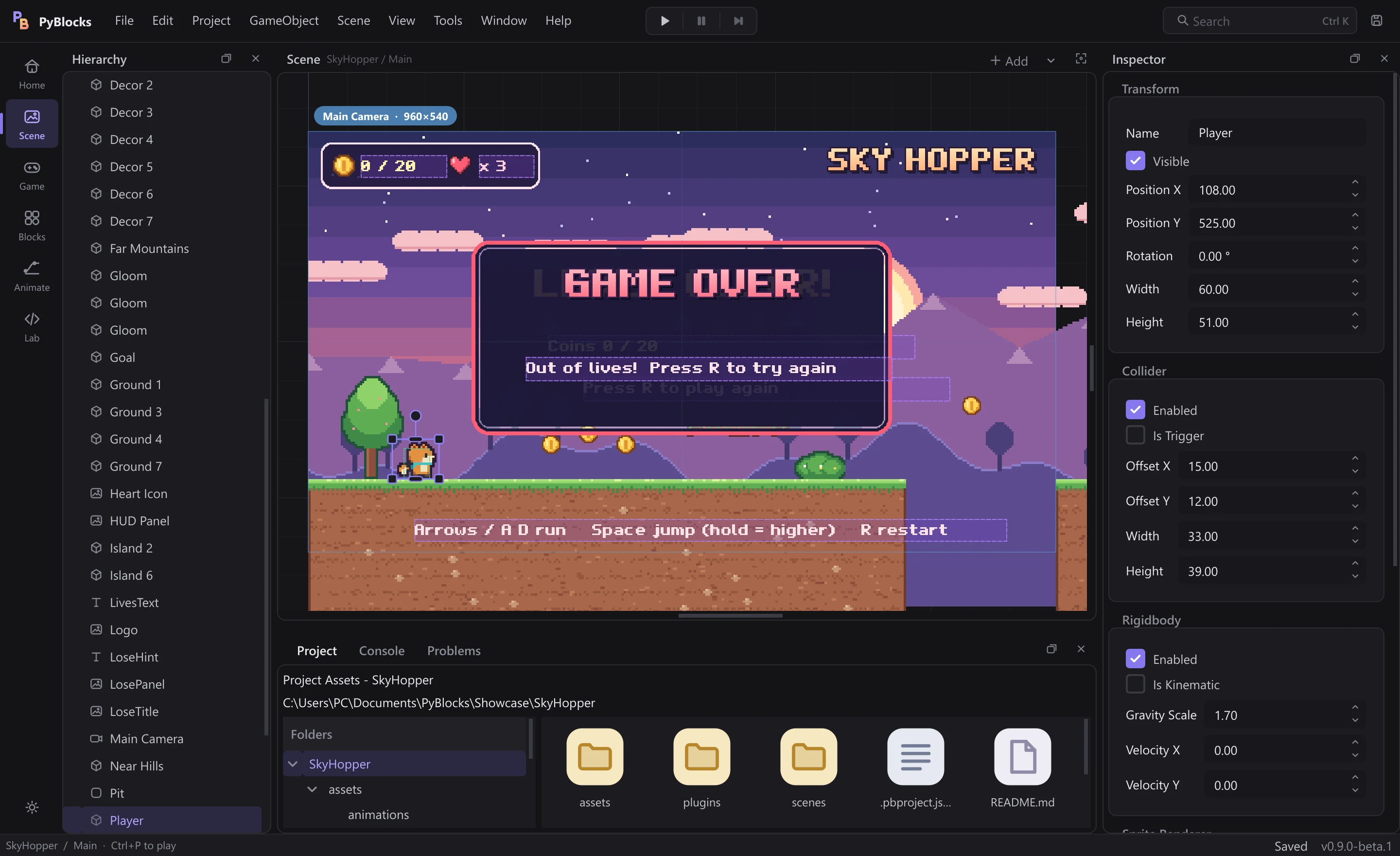
If your camera scrolls or follows the player, pin the HUD to the screen: give each UI object a script with When Game Starts followed by Pin to screen. Its x and y are pixels from the top-left corner of the screen. Sky Hopper pins its whole HUD this way.
#Change UI from blocks
The UI category changes UI objects while the game runs. Most of its blocks have a UI field where you type the name of the target object.
Set UI TextandSet UI text from template, which replaces{name}with a variable of this object and{Object.name}with a variable of another object.Show UIandHide UI.Set UI Image,Set UI Color,Set UI OpacityandSet UI Font Size.Set Button Text,Set Button Image,Enable ButtonandDisable Button.- Game-ready helpers:
Set barfor health bars,Say in dialogue boxandChoice menu.
To react to a button, open the button's own script and use When This Button Clicked. It runs when the player presses and releases the left mouse button over the button while it is enabled.
#Import a font
Every .ttf or .otf file anywhere under the project's assets folder is a project font. The convention is assets/fonts.
- Select a UI Text or UI Button.
- In the Inspector, click
Import font…next toFont. - Choose a
.ttfor.otffile. PyBlocks copies it intoassets/fontsand selects it. If a different file with the same name is already there, the copy gets a suffix such as_2; a font that is already inside the project is not copied again.
You can also copy font files into assets/fonts yourself. The font list rescans the project every time you open it, and a font file you overwrite on disk is reloaded by the editor.
#The font picker
The Font list in the Inspector shows Default first, then three groups: Project fonts (each drawn in its own typeface), Common fonts (installed fonts such as Arial, Segoe UI or Verdana, when present) and All installed fonts. A preview line under the list shows the selected font.
If a UI object points to a font that cannot be found, the list shows it with (missing) for a project file or (not installed) for a system font, and the game uses the default font instead, with a single warning in the Console.
Pixel fonts that ask for unsmoothed rendering, like the ones in the examples, are drawn without antialiasing so they stay crisp.
#Change fonts while the game runs
Set UI Font changes the font of a UI Text or UI Button. It has three fields:
UI: the name of the UI Text or UI Button.Font: a project font path such asassets/fonts/MyFont.ttf, an installed family such asArial, orDefaultto go back to the default font.Size (0 = keep):0keeps the current size; any other value is clamped between 1 and 512.
The Problems panel flags mistakes before you press Play: an empty UI field, a name that no UI Text or UI Button in the scene uses, a font file that does not exist, or a file that is not a font (such as logo.png). If the font file is missing while the game runs, the block keeps the current font and reports it once in the Console.
#Fonts in the examples
Each example project ships its own original font in its assets/fonts folder. They are dedicated to the public domain (CC0 1.0), or usable under the SIL Open Font License 1.1 if you prefer, so you can copy them into your own games.
- Hollowmere Serif (Bramblelight): a storybook pixel serif.
- Neon Grid (Neon Snake): a squared techno display face.
- Pip Chunky (Sky Hopper): a chunky, rounded pixel face.
- Garden Soft (The Little Garden): a soft, rounded, smoothed face (not pixel).
All four cover A–Z, a–z, 0–9, common punctuation and the Spanish characters á é í ó ú ü ñ ¿ ¡. The pixel fonts have a 12 px em: use sizes 12, 24, 36, 48 and so on for perfectly sharp pixels.
To reuse one, click Import font… and browse to the example's assets/fonts folder (examples you opened from Home are in Documents\PyBlocks). See Example projects.