BLOCK REFERENCE / EVENTS
Events
The hats that start every script: on start, every frame, on a key, on a collision.
16 blocks
#On Collision Enter
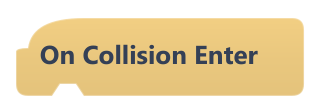
Runs the blocks below in the frame this object's collider starts touching another solid collider.
Works with any other object. Both need an enabled Collider and neither may be a trigger (use On Trigger Enter for those). Contacts are checked once per frame, after scripts and physics have run.
Example Play a hit sound or take away a life when the player bumps into an enemy.
#On Collision Exit
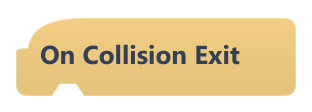
Runs the blocks below in the frame this object's collider stops touching another solid collider.
Works with any other object; triggers are ignored (use On Trigger Exit). Contacts are checked once per frame, after scripts and physics have run.
#On Fixed Update
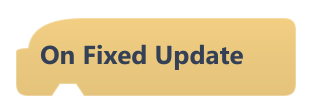
Runs the blocks below at a fixed rate of 60 times per second, whatever the frame rate.
Depending on how long a frame took, it runs zero, one or several times in that frame, always after On Update. Handy for movement that should feel the same on fast and slow computers.
Example Move X By 3 here moves the object exactly 180 pixels per second.
#On Key Pressed
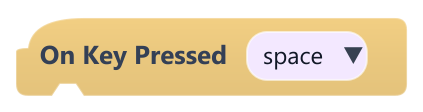
Runs the blocks below once, in the frame the chosen key is pressed down.
Holding the key does not repeat it. For something that should happen while a key is held, use On Update with Key Pressed? or Get Action Pressed.
| Field | What it means |
|---|---|
Keydropdown | Key to listen for: space, enter, escape, the arrows (up, down, left, right) or the letters w, a, s, d, q, e, r, f, z, x, c, v.Options: space · enter · escape · up · down · left · right · w · a · s · d · q · e · r · f · z · x · c · v |
Example Fire a bullet with space, one shot per press.
#On Key Released
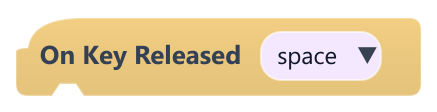
Runs the blocks below once, in the frame the chosen key is let go.
| Field | What it means |
|---|---|
Keydropdown | Key to listen for: space, enter, escape, the arrows (up, down, left, right) or the letters w, a, s, d, q, e, r, f, z, x, c, v.Options: space · enter · escape · up · down · left · right · w · a · s · d · q · e · r · f · z · x · c · v |
Example Stop a charge attack when x is released.
#On Mouse Click
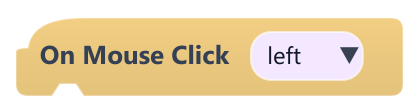
Runs the blocks below in the frame the chosen mouse button is pressed anywhere in the game view.
Every object with this block reacts, wherever the pointer is. To react only when this object is clicked, use On Object Clicked.
| Field | What it means |
|---|---|
Buttondropdown | Mouse button: left, right or middle.Options: left · right · middle |
#On Mouse Release
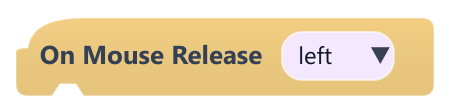
Runs the blocks below in the frame the chosen mouse button is released anywhere in the game view.
Every object with this block reacts, wherever the pointer is.
| Field | What it means |
|---|---|
Buttondropdown | Mouse button: left, right or middle.Options: left · right · middle |
#On Object Clicked
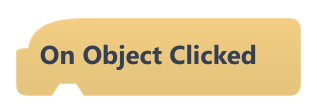
Runs the blocks below when the left mouse button is pressed over this object.
Only the topmost visible object under the pointer (by layer order) gets the click; hidden objects and cameras are skipped. The clickable area is the object's width by height box, ignoring rotation.
#On Object Spawned
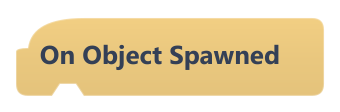
Runs the blocks below on a newly created object, in the frame it appears.
Fires on copies made by Clone Object, on objects made by Create Object and on Grow trail segments. Spawned objects do not run When Game Starts, so put their setup here.
#On Timer Finished
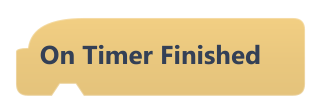
Runs the blocks below when a timer finishes. Reserved: currently has no effect at runtime.
The block has no timer name to pick and no block starts timers yet, so scripts under it never run.
#On Trigger Enter
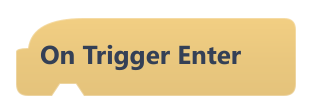
Runs the blocks below in the frame this object's collider starts overlapping a trigger.
Fires when either of the two colliders has Is Trigger on. Triggers detect overlaps but never push objects apart, which makes them ideal for coins, checkpoints and damage zones.
Example On a coin with Is Trigger: add 1 to the score and use Destroy Object.
#On Trigger Exit
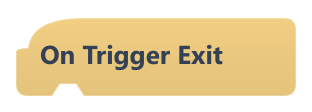
Runs the blocks below in the frame this object's collider stops overlapping a trigger.
Fires when either of the two colliders has Is Trigger on.
#On Update

Runs the blocks below once every frame while the game is playing.
Frames run about 60 times per second, but the exact rate depends on the computer. Blocks like Move X By are not scaled by frame time, so their speed follows the frame rate. If a Wait pauses the script, it resumes there next time instead of starting over.
Example Put Platformer controls here to move a character.
#When Game Starts
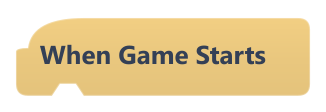
Runs the blocks below once when the scene starts playing.
It runs again every time a scene loads and after Restart game, at the same moment as When Scene Starts (this one first). Frame time is 0 here, so time-based blocks like Lerp To Position do nothing; a Forever placed here keeps running every frame.
#When Scene Starts
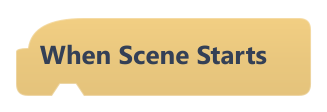
Runs the blocks below once when this scene starts playing, including after a scene load or Restart game.
It runs at the same moment as When Game Starts, right after it. Frame time is 0 here, so time-based blocks do nothing.
Example Set up the level: position the player, show the HUD, start the music.
#When This Button Clicked
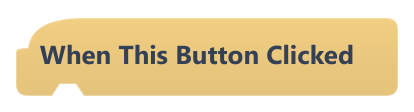
Runs the blocks below when this UI button is clicked with the left mouse button.
Put it in the script of a UI Button object. The click counts when the button is pressed and released with the pointer over it, and only while the button is enabled and active.
Example On a Play button: load the first level.