PYBLOCKS / DOCS
The editor interface
How the PyBlocks window is organised: workspaces, panels, the game view, the command palette and appearance options.
#Workspaces and the rail
The narrow rail on the left switches between six workspaces. Each one shows the tools for one job:
| Ctrl1 | Home: examples, recent projects, new project |
|---|---|
| Ctrl2 | Scene: place and edit objects |
| Ctrl3 | Game: the running game |
| Ctrl4 | Blocks: the script of the selected object |
| Ctrl5 | Animate: animation clips and the timeline |
| Ctrl6 | Lab: PyBlocks Lab, custom blocks in Python |
The same list is in the Window menu. Tools → PyBlocks Lab (Ctrl+Shift+L) also opens the Lab. Hover a rail button to see its shortcut.
#Header, menus and status bar
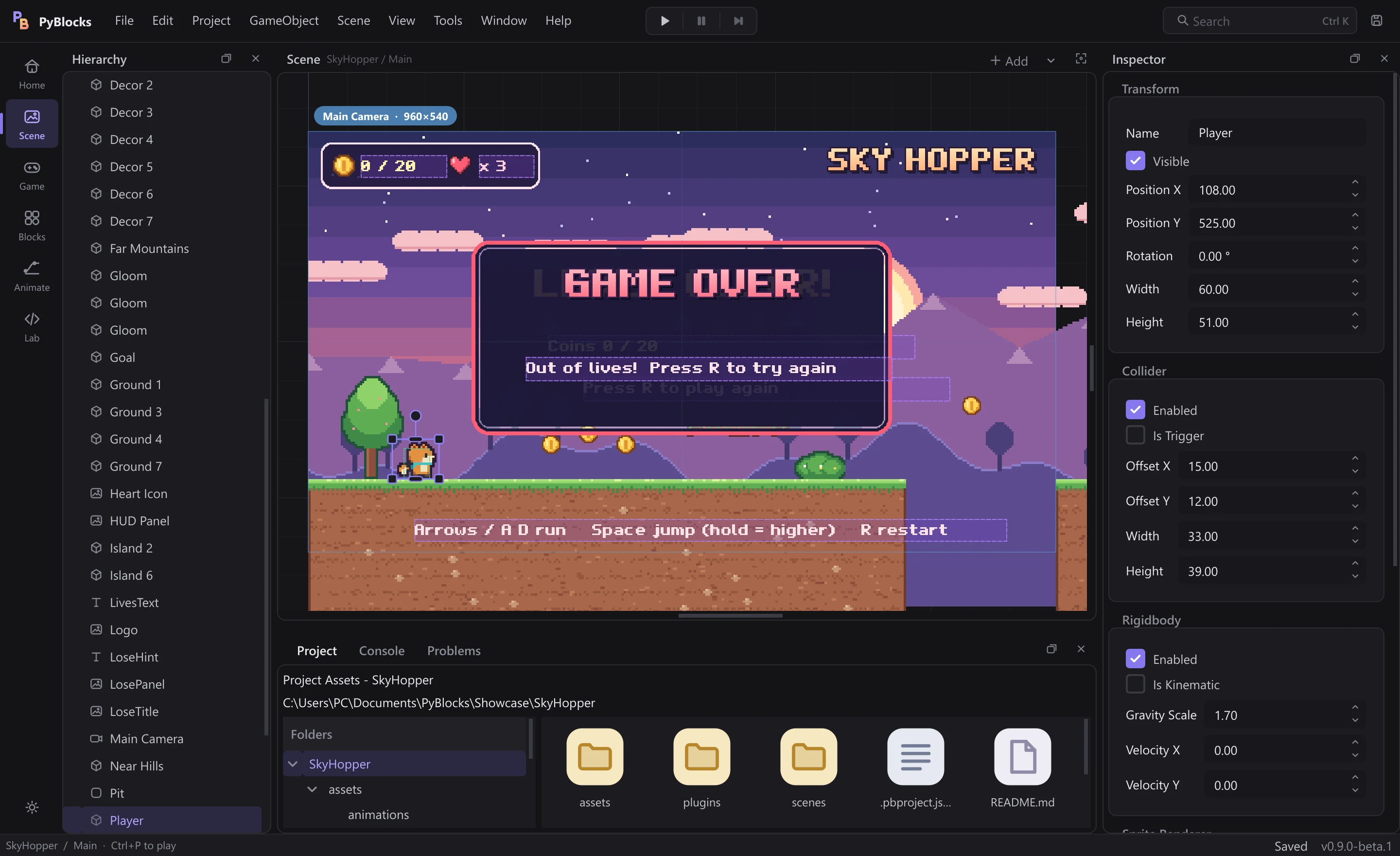
The header row holds the menus (File, Edit, Project, GameObject, Scene, View, Tools, Window, Help), the play controls in the middle, and on the right the Search box (command palette) and a disk icon that saves the scene.
The play controls are Play (it turns into Stop while the game runs), Pause/Resume and Step one frame. While the game runs, an accent-coloured line appears under the header, so you always know when you are in Play mode.
Under each workspace (except Home) a caption shows its name and project / scene, with a dot when the scene has unsaved changes. In the Scene workspace the caption also has an Add button to create objects and a button to frame the camera (Ctrl+Home, also Tools → Frame scene).
The status bar shows messages, the save state (Saved, Modified, No project) and the exact version of PyBlocks.
#Panels
Hierarchy: every object in the scene as a tree. See Scenes and objects.Inspector: the properties of the selected object.Project & Console: a tabbed panel withProject(the project's files),Console(log messages and errors, with aClearbutton) andProblems(block diagnostics).
Each workspace remembers which panels it shows. By default Scene shows all three, Blocks and Animate show only Hierarchy, and Home, Game and Lab show none. Turn panels on and off with Window → Panels.
Every panel has small buttons in its title bar: one floats the panel as a separate window (or docks it back), another hides it. Drag a panel by its title bar to dock it on another side of the window.
#Where the game view lives
By default the running game fills the Game workspace. You can keep it next to the scene or the blocks instead, so you can watch the game while you edit. Choose a placement in Window → Game view placement or with the layout button in the Game workspace toolbar:
In the Game workspace(default).Docked right: next to the Inspector.Docked bottom: next to Project & Console.Separate window: a floating window you can move to a second monitor.
When the game view is docked, the Game rail button brings it to the front, and its title bar has a button to put it back in its workspace.
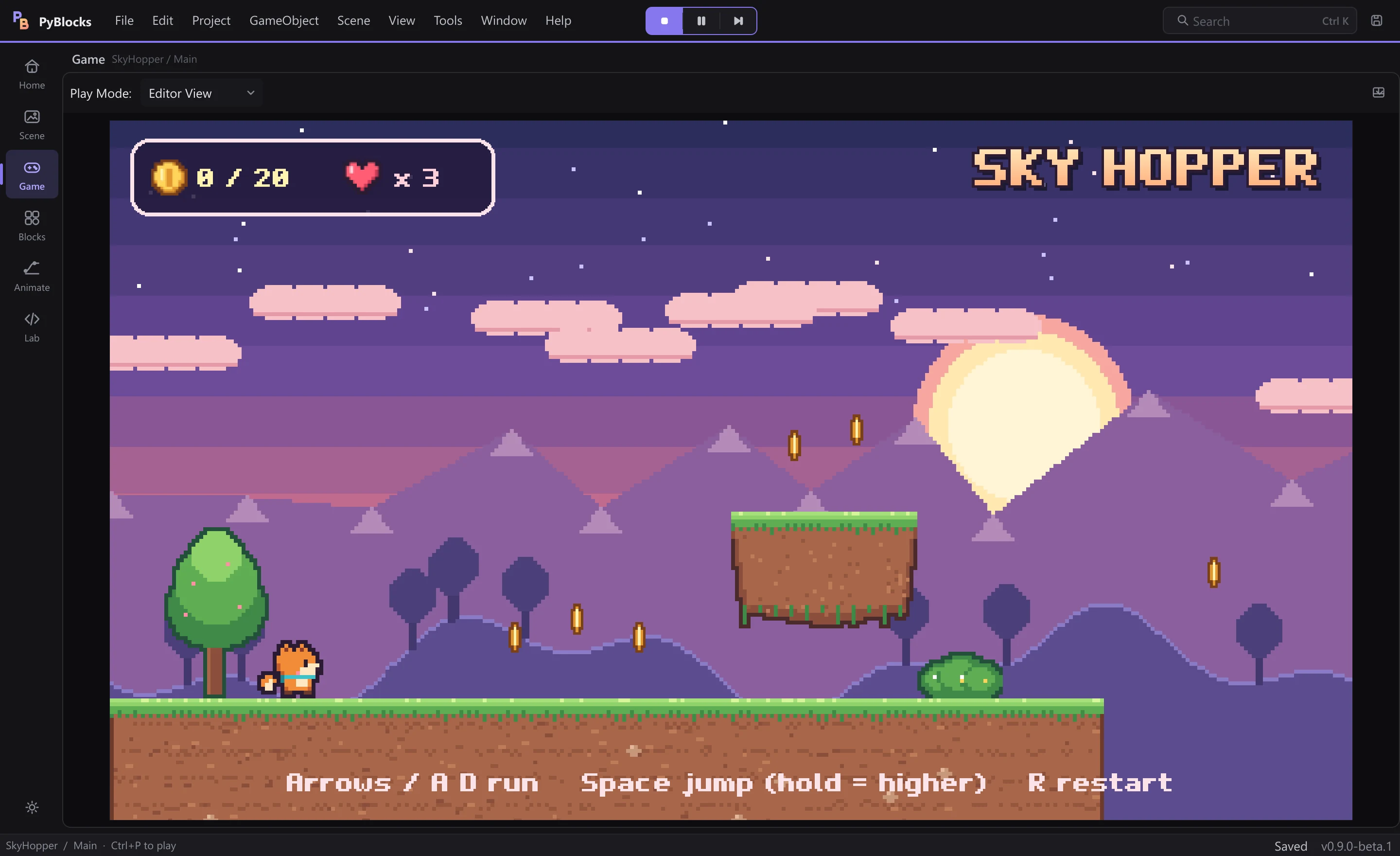
The Play Mode: list in the Game workspace toolbar decides how Play starts: Editor View (inside the editor), Windowed (a separate preview window; Esc closes it) or Fullscreen (hold Esc for 3 seconds to exit).
#Command palette
Press Ctrl+K or click Search in the header. Type part of a name to find any menu command, workspace (Go to Blocks, ...) or object in the open scene. Use the arrow keys to move, Enter to run and Esc to close. Commands show their shortcut, so the palette is also a quick way to learn them.
#Appearance, motion and sounds
View → Appearance → Light / Dark, or the sun/moon button at the bottom of the rail, switches the theme.View → Reduce motionturns off most interface animations (crossfades, sliding indicators, collapsing lists).View → Interface soundsturns the soft click when blocks snap together (and the clack when they come apart) on or off. It is on by default.
These choices are remembered between sessions.
#Reset the layout
PyBlocks saves the window size, panel positions, visible panels and game view placement when you close it. If you lose a panel or the layout gets messy, use Window → Reset layout to go back to the default arrangement.
All shortcuts are listed in Keyboard shortcuts.