PYBLOCKS 0.9.0-beta.1 / DOCS
PyBlocks documentation
Everything PyBlocks does, explained: from installing it and making your first game to every one of its blocks.
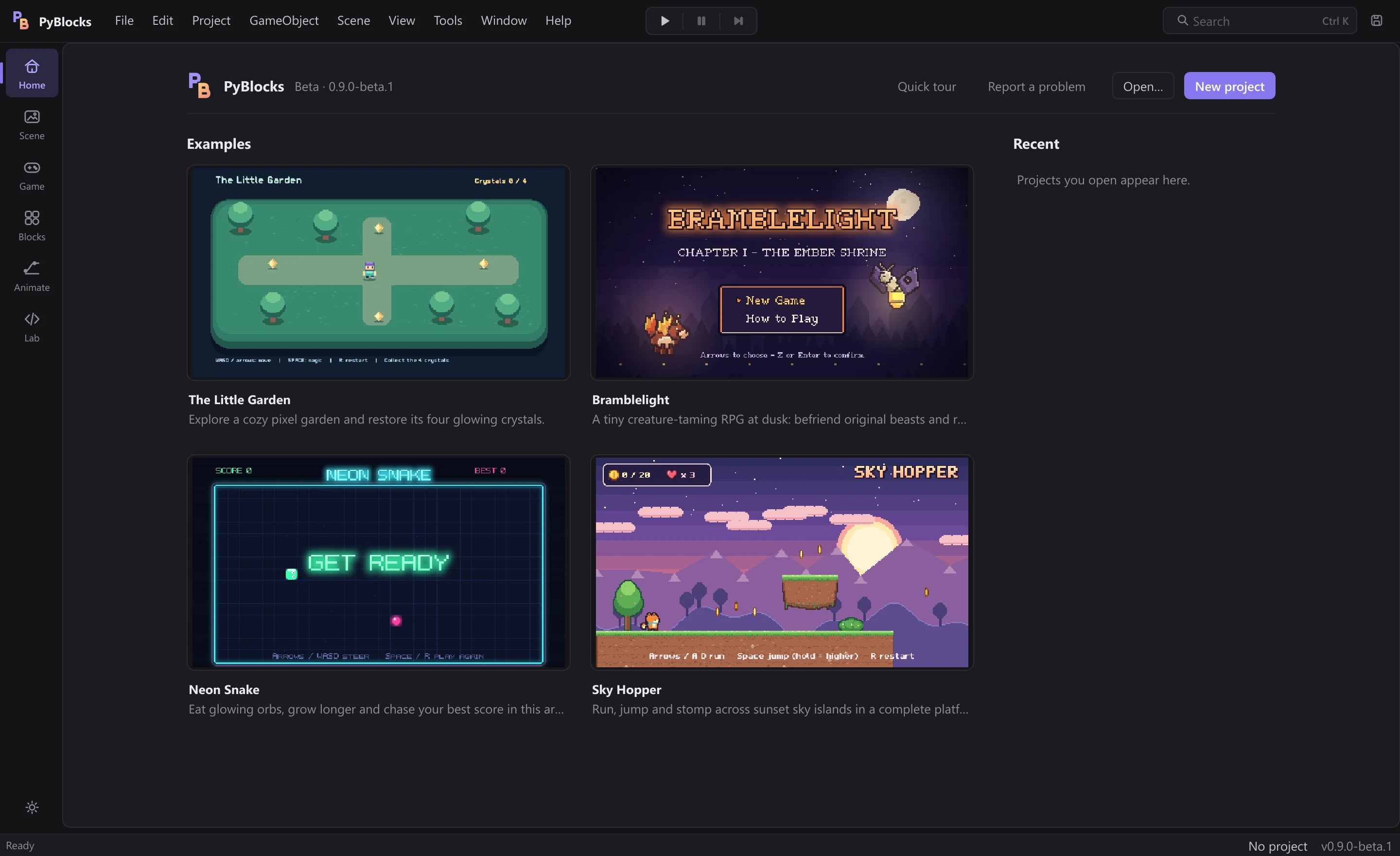
Install PyBlocks on Windows, open an example, press Play and save your changes. No Python or other tools are needed.
Start
Install PyBlocks on Windows, open an example, press Play and save your changes. No Python or other tools are needed.
The editor interfaceHow the PyBlocks window is organised: workspaces, panels, the game view, the command palette and appearance options.
Example projectsFour complete games ship with PyBlocks. Play them, then open their blocks to see exactly how each one works.
Create
A game is made of scenes, and a scene is made of objects. Learn to create, arrange and transform them, and to move between scenes while the game runs.
How blocks workScripts are stacks of blocks that belong to an object and start from an event. This guide covers the block shapes, building scripts, variables and lists, timing, and how errors are reported.
AnimationAnimate objects with keyframes and sprite frames in the Animate workspace, then play the clips from blocks. For quick one-off movements, use tweens.
Effects and lightingAdd particles, screen flashes and shakes, dark scenes lit by torches, and post effects such as a vignette or a colour grade, all with blocks.
Sound and musicImport sound effects and music into your project and play them with the Audio blocks.
UI, text and fontsBuild titles, HUDs, menus and buttons with UI objects, and give your game its own typeface by importing .ttf or .otf fonts into the project.
Go further
Write your own blocks in Python, load them into the block palette, and share them with other projects as .pbblock packages.
Export a Windows gameTurn your project into a standalone game folder that runs on Windows without Python or PyBlocks installed.
Keyboard shortcutsEvery keyboard shortcut in the PyBlocks editor, grouped by where it works.
Troubleshooting and feedbackWhat to do when something goes wrong, where PyBlocks keeps its logs, how to check an installation, and how to send us a useful report.
Block reference
The hats that start every script: on start, every frame, on a key, on a collision.
Motion31Position, rotation, size and movement of objects.
Control15Conditions, loops, waits and clones.
Sensing16Questions about the world: touching another object? where is the mouse? how much time passed?
Input4Axes and actions: the player's horizontal and vertical direction and action buttons.
Operators20Math, comparisons, logic, randomness and text.
Variables18Store and change values: score, lives, states, globals.
Lists7Lists of values for inventories, queues and more.
Objects8Create, find, enable and destroy scene objects.
Physics8Velocity, forces and gravity of the rigidbody.
Camera9Follow the player, zoom, bounds and camera shake.
Looks11Visibility, opacity, color, sprite and draw order.
Animation17Play Animator clips and tween properties.
VFX7Particles, emitters, shockwaves and screen flashes.
Effects2Ready-made effects: bursts and trails.
Lighting8Ambient light, point lights and post effects (vignette, color grade, scanlines).
Audio9Sounds, music and volume.
UI17Text, buttons, images, bars, dialogues, menus and fonts.
Scene8Switch scenes (with a fade), reload them and checkpoints.
Progress8Save and load games and checkpoints.
AI15Enemy and NPC behaviours: chase, flee, patrol, wander.
Essentials1Shortcuts to get started fast.
Debug4Console messages and debugging tools.
Custom2Custom blocks (reserved for a future version).