BLOCK REFERENCE / LIGHTING
Lighting
Ambient light, point lights and post effects (vignette, color grade, scanlines).
8 blocks
#Add light to this object

Attaches a point light to this object that follows it around.
Lights only show when the scene is darkened with Set ambient light (darkness above 0). Running it again on the same object replaces its light. Up to 256 lights per scene.
| Field | What it means |
|---|---|
radiusnumber | Light radius in pixels (1-4000).Default: 160 |
colortext | Light color. Hex color #rrggbb; invalid values fall back to the default.Default: #ffd696 |
intensity 0-1number | Brightness from 0 to 1.Default: 1 |
flicker 0-1number | How much the light wobbles, from 0 (steady) to 1 (strong), like a torch.Default: 0 |
offset xnumber | Horizontal shift from the object's center, in pixels (positive = right).Default: 0 |
offset ynumber | Vertical shift from the object's center, in pixels (positive = down).Default: 0 |
Example Torch: radius 180, color #ffb060, flicker 0.3.
#Clear post effects

Removes the vignette, color grade and retro scanlines.
Ambient darkness and lights are not affected.
#Remove light of this object

Removes this object's light.
Does nothing if the object has no light.
#Set ambient light

Darkens the whole world with a color so that object lights can shine through it.
Darkness 0 is full daylight and 1 is pitch black. UI and screen-pinned HUD drawn on top are never darkened. Lighting resets when a scene starts.
| Field | What it means |
|---|---|
colortext | Color of the darkness. Hex color #rrggbb; invalid values fall back to the default.Default: #0a0c1e |
darkness 0-1number | From 0 (daylight) to 1 (pitch black).Default: 0.6 |
over secondsnumber | Fade time in seconds; 0 changes instantly.Default: 0 |
Example In On Start of a cave level, set darkness to 0.85 and add lights to the torches.
#Set color grade (post effect)

Tints the world by multiplying it with a color, as a post effect.
It works with or without ambient darkness. Screen-pinned HUD drawn on top is not tinted.
| Field | What it means |
|---|---|
colortext | Tint color. Hex color #rrggbb; invalid values fall back to the default.Default: #ffd7b0 |
strength 0-1number | From 0 (off) to 1 (full tint).Default: 0.3 |
Example Warm orange at 0.3 for a sunset, pale blue for night.
#Set light of this object

Changes the radius and intensity of this object's light, optionally fading over time.
The object must already have a light from Add light to this object; otherwise the game stops with an error.
| Field | What it means |
|---|---|
radiusnumber | New radius in pixels (1-4000).Default: 160 |
intensity 0-1number | New brightness from 0 to 1.Default: 1 |
over secondsnumber | Transition time in seconds; 0 changes instantly.Default: 0 |
Example Fade a lantern out: intensity 0 over 2 seconds.
#Set retro scanlines (post effect)
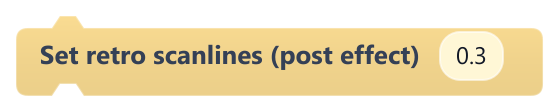
Draws subtle CRT-style scanlines over the world, as a post effect.
Screen-pinned HUD drawn on top is not covered.
| Field | What it means |
|---|---|
strength 0-1number | From 0 (off) to 1.Default: 0.3 |
#Set vignette (post effect)

Darkens the edges of the screen, as a post effect.
Screen-pinned HUD drawn on top is not affected.
| Field | What it means |
|---|---|
strength 0-1number | From 0 (off) to 1.Default: 0.5 |
colortext | Edge color. Hex color #rrggbb; invalid values fall back to the default.Default: #000000 |